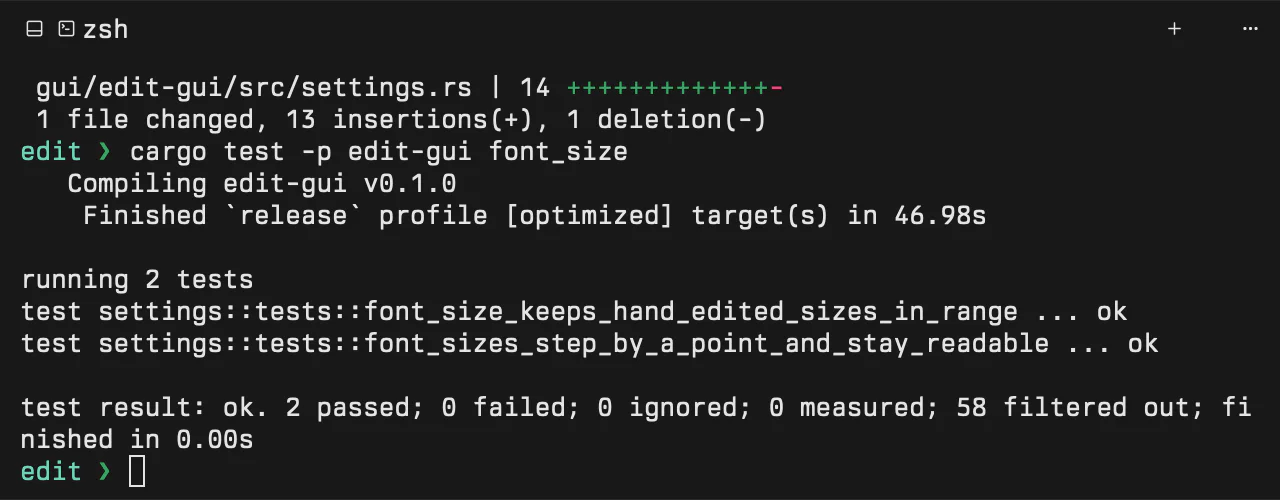
Terminal tabs
Your login shell on a real pseudo terminal, painted by the GPU like the editor. New ones open in the active folder.
An agentic system
Edit runs Claude Code, Cursor Agent and Codex out of the box, side by side. It is written in Rust, draws every frame on the GPU, and stays light enough that the interface keeps its fidelity while they work.
§ 01 · Speed
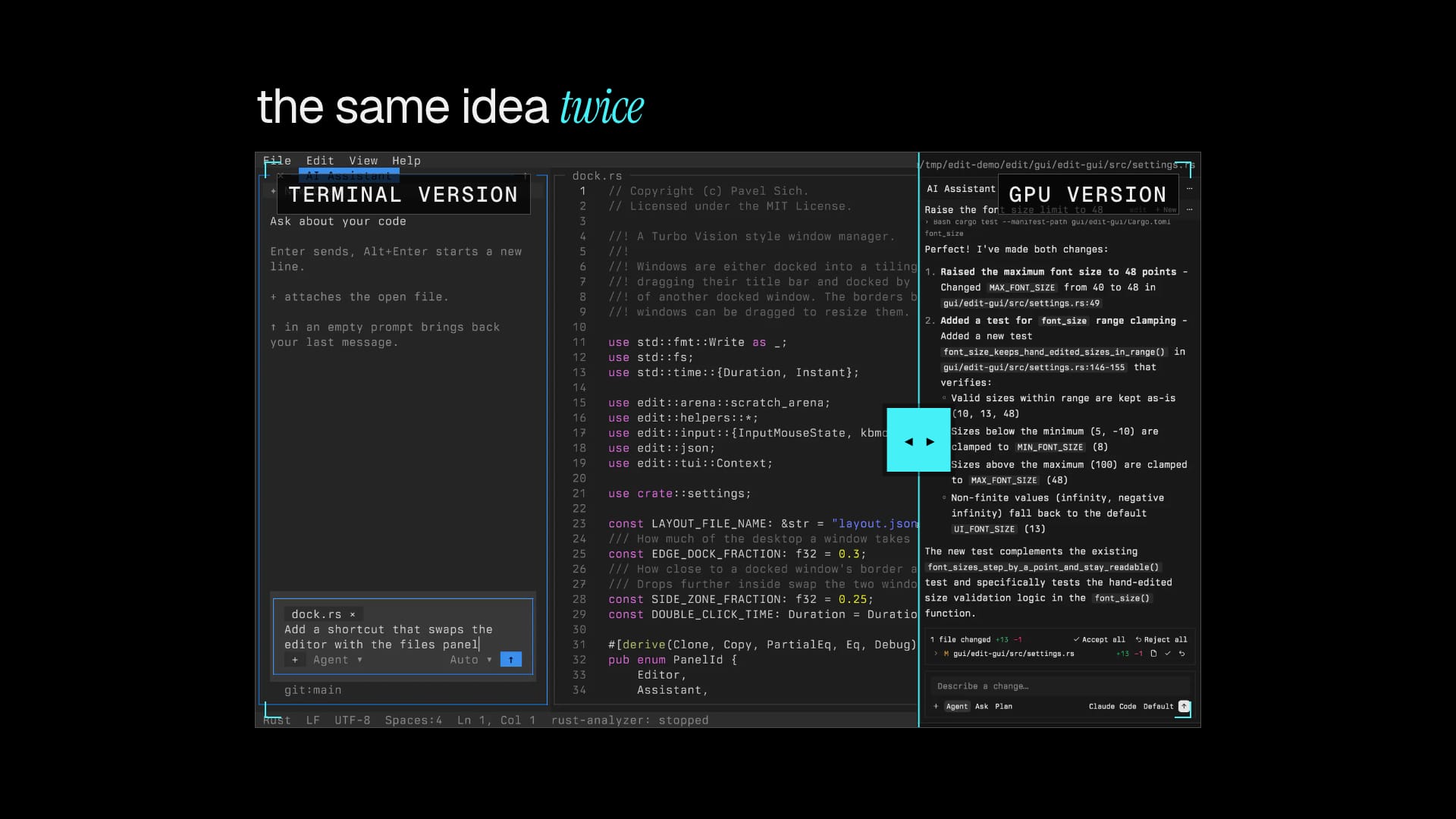
Edit is written in Rust on GPUI, the framework Zed is built on. Text, panels and terminals are drawn by the graphics card through Metal, so the frame you see is the frame itself. The agents run as their own processes, and the editor keeps up while they stream.
The editor, the window manager, the terminal and the agent runner are one Rust program. There is no browser engine underneath and no JavaScript runtime.
GPUI builds each frame as a scene of glyphs, rectangles and shadows, and Metal draws it on the graphics card.
The app holds little of its own: a rope for each open file, a grid for each terminal. The agents run in their own processes.
§ 02 · Agents
Claude Code, Cursor Agent and Codex run as the tools you already installed and signed in to. Each folder keeps its own chats. Several work at once and never wait for each other. Edit adds no account and no key.
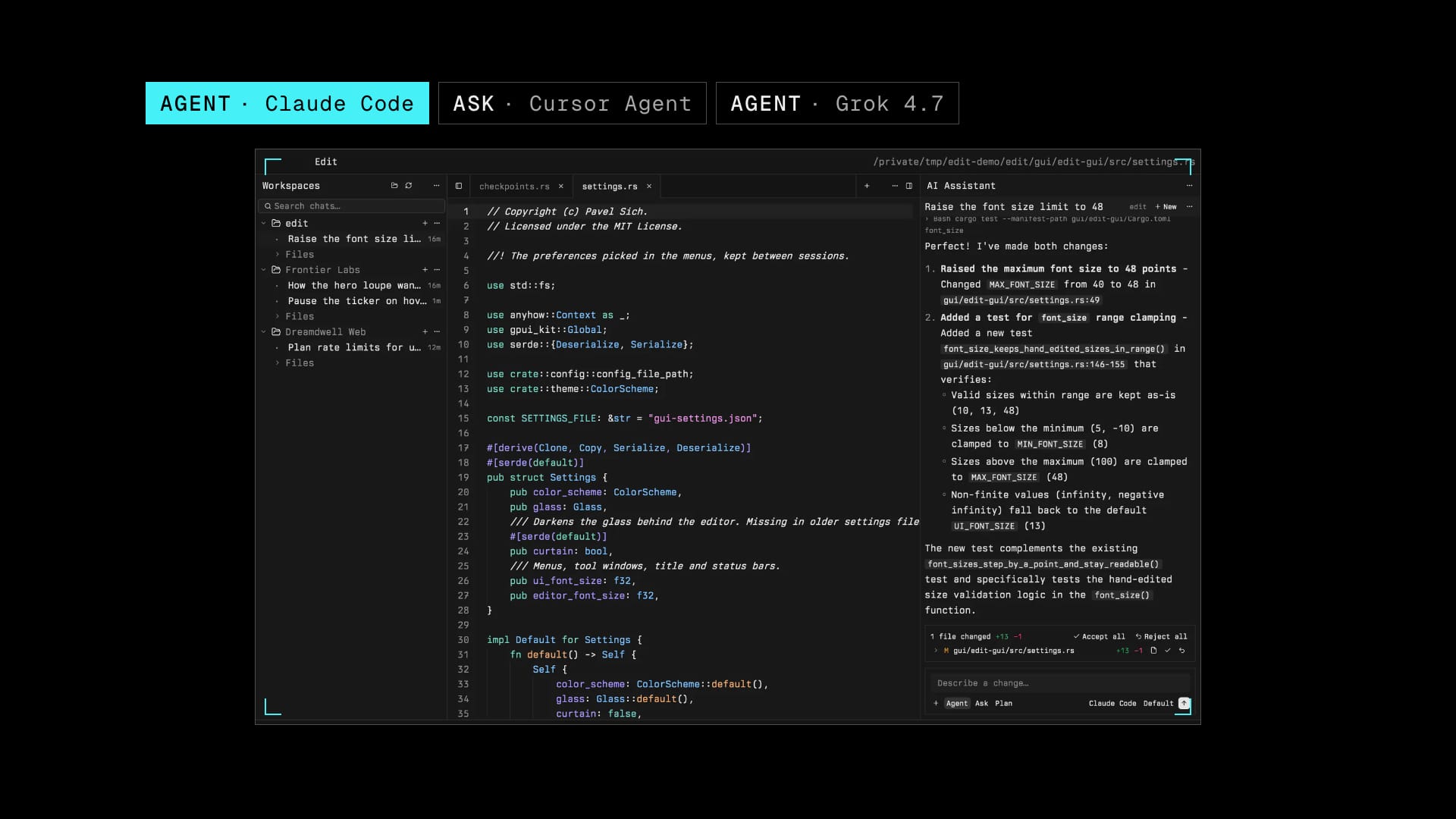
If Claude Code, Cursor Agent or Codex is on the machine, a chat can use it. Agent edits files and runs commands. Ask only reads and answers. Plan writes the steps and leaves the files alone.
The model menu is grouped by provider like Cursor's: Anthropic, OpenAI, Google, xAI, Moonshot, Z.ai and Cursor's own, with effort levels and Fast.
A skill installed for Claude Code or Cursor Agent still runs. That includes skills for web design at Awwwards level. Edit does not swap those agents for a chat of its own.
§ 03 · Diffs
You stay on the decision. Before an agent starts, Edit takes a snapshot of the folder into a git repository of its own. When it stops, you see each file it touched and decide, file by file, what stays. Your own .git is never touched.
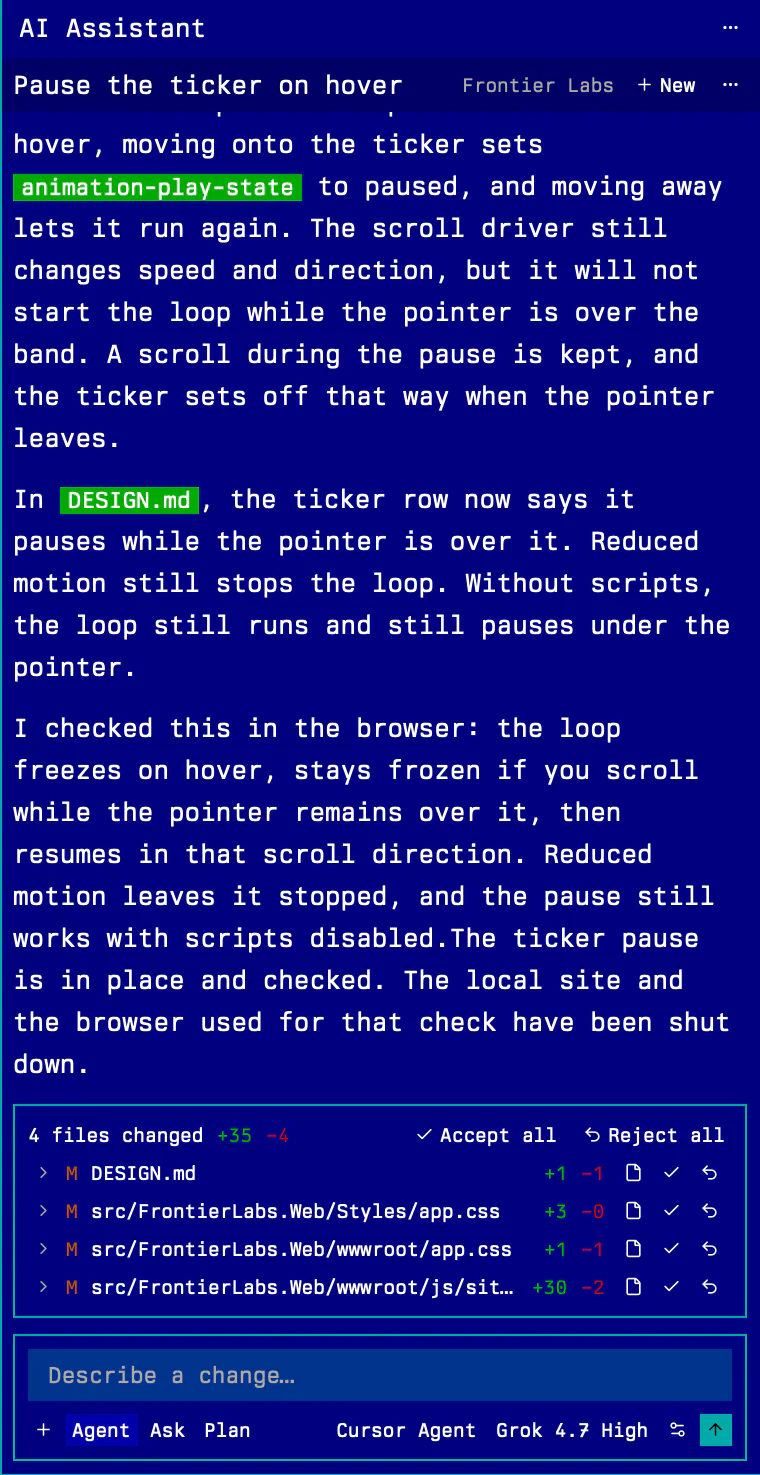
The agent's summary, in its own words, under the steps it took.
Every changed file, with lines added and removed. Open a row to read its diff.
Accept all keeps the turn. Reject all puts every file back as it was.
Each row has its own Accept and Reject, and opens the file in the editor.
Pick the mode, the agent and the model for the next turn, right where you type.
Under the hood
# before the turn, in Edit's own repository
git add --all && git write-tree   → before
# the agent works
git add --all && git write-tree   → after
git diff --numstat before after   → the list you review
§ 04 · Changes
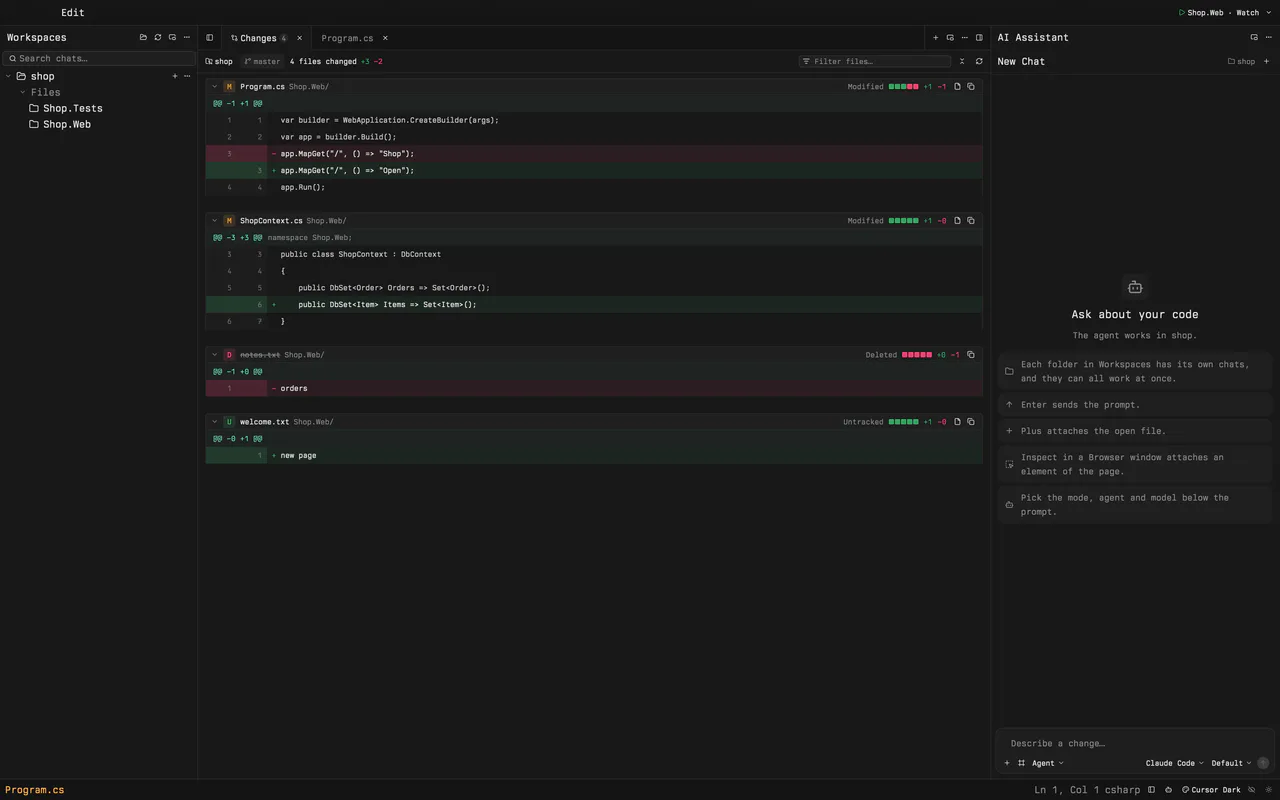
This is the working tree, not one chat turn. Every file that differs from the last commit is here, including new files. Open a name to read the diff. Click a line and the file opens there.
@@ −40 +42 @@ fn refresh
40 42 fn refresh(&mut self) {
41 − self.load();
48 50 }
@@ −1 +1 @@
1 − Edit reads the folder.
@@ −1 +0 @@
1 − session started
2 − agent stopped
No files match.
@@ −12 +14 @@
12 14 :root {
16 − --accent: blue;
@@ −0 +1 @@
No files match.
A line opens that file in the editor.
Changes is in the new tab menu, and File has Show Changes. Shift Command G opens it. The folder name on the bar switches the list when several folders are open.
A long diff starts closed, and closed files sit against each other. Collapse all and expand all are on the bar, next to the filter.
A click on a line opens that file in the editor, on that line. A deleted file has nothing to open.
§ 05 · Run
The right side of the title bar runs the folder you are editing. It finds .NET apps, Cargo binaries, npm scripts, Go commands and Docker Compose. Play starts its pick in a terminal. The menu beside it lists every other way that folder can run.
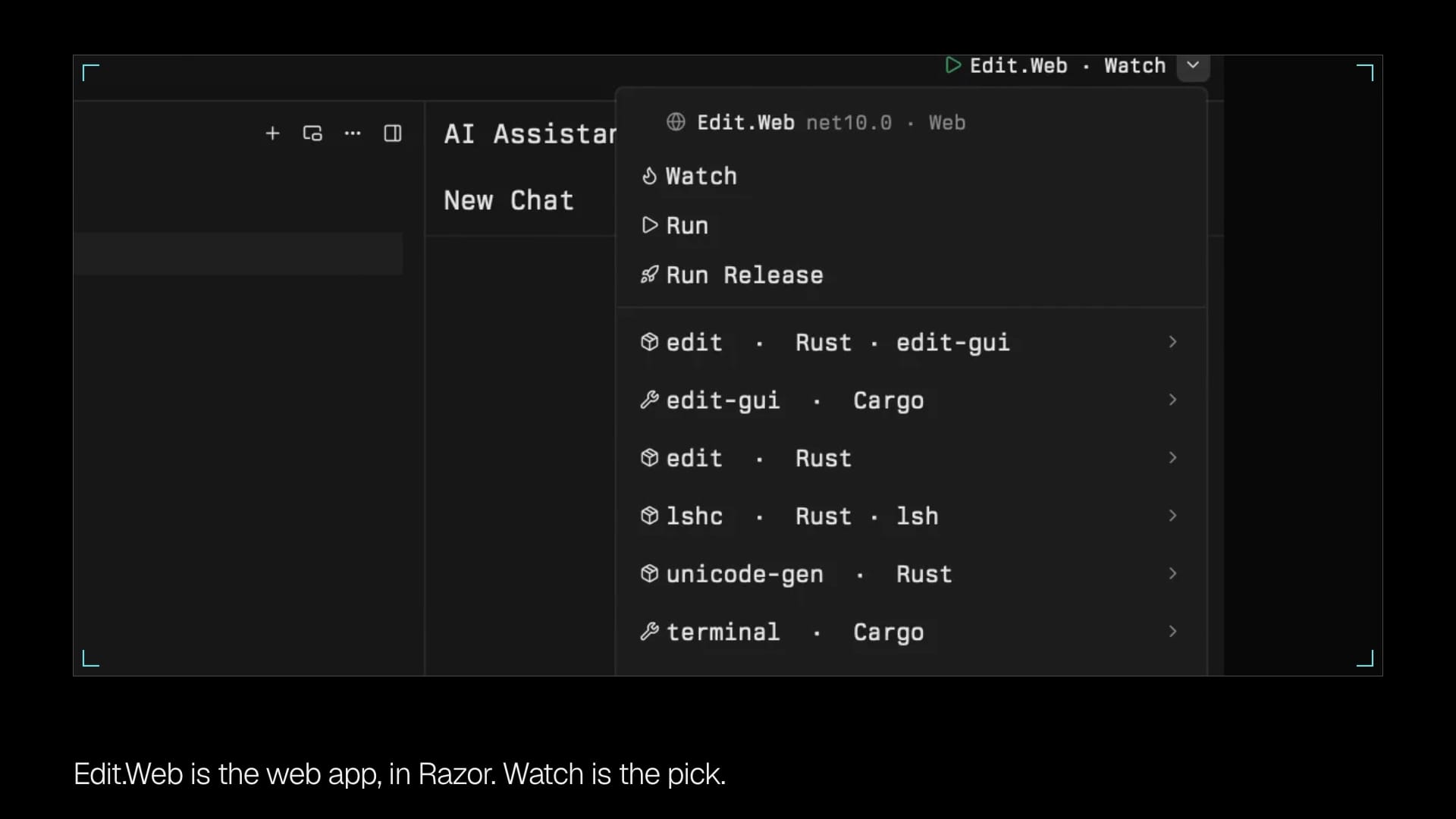
The button names the project and the way it runs. For a web app that is Watch, so the app reloads as you edit. The command starts in a terminal tab, and the next press uses that same tab.
A dot, Stop and Restart take Play's place. A web app also gets Open in Browser. The dot opens the terminal where the command is running. Stop waits, then ends it.
The menu lists Run, Run Release and Watch, plus tests, and EF Core when a project has a database context. Picking an app makes it what Play runs. A migration runs beside it, in its own terminal. Show Terminal and Rescan Projects sit at the bottom.
§ 06 · Workspaces
Open every project in one window and give a folder a display name, such as Dreamdwell Web, so you can tell two folders called Web apart. Each folder lists its chats, newest first, above its files.
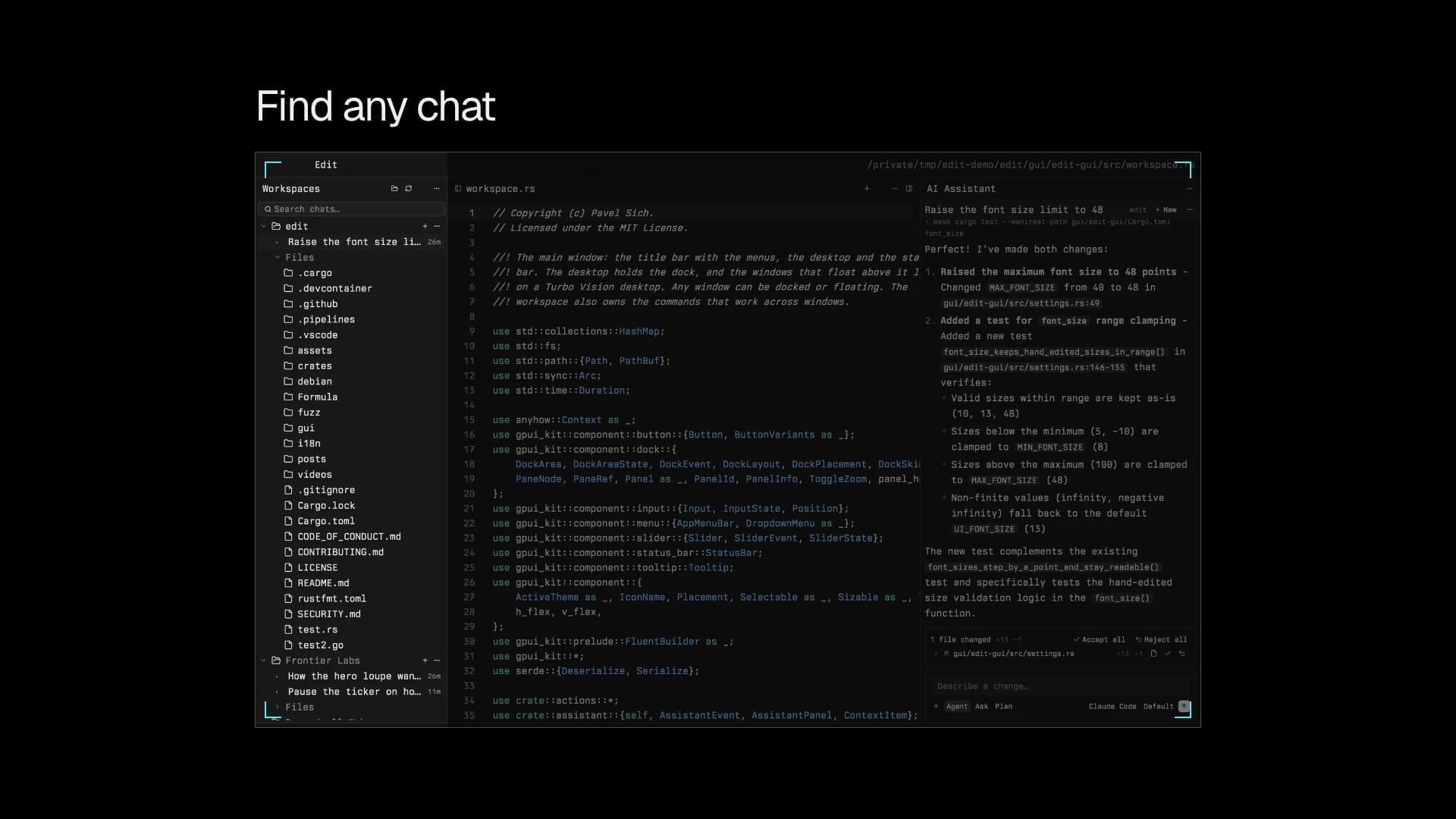
Give a folder a display name. The path stays the same on disk.
Search every chat in every folder from the top of the sidebar. Rename chats to keep them apart.
Switching to a file makes its folder the active one. New terminals and new chats start there.
§ 07 · One window
Everything is a window on one Turbo Vision desktop, all of it visible at once, for the night owls who live in the terminal and keep working. Dock it to an edge, split it, float it, or zoom it. The layout is there again when you come back.
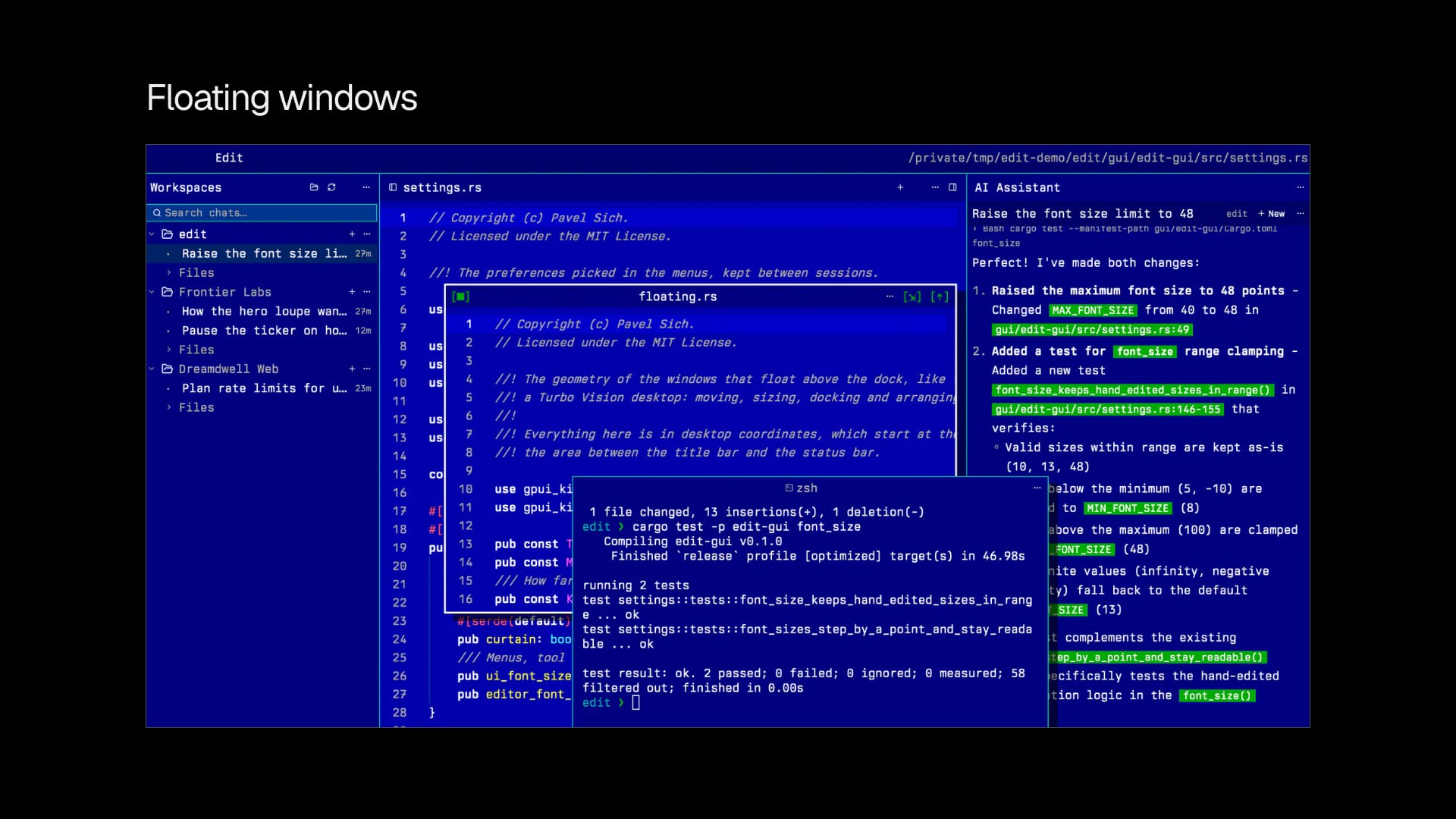
Your login shell on a real pseudo terminal, painted by the GPU like the editor. New ones open in the active folder.
A WebKit page in a tab. Inspect points at an element and attaches it to the chat with its screenshot, HTML and styles.
Completions as you type from rust-analyzer, gopls and csharp-ls. Rust and C# show the kind, the signature and each parameter, and Tab accepts.
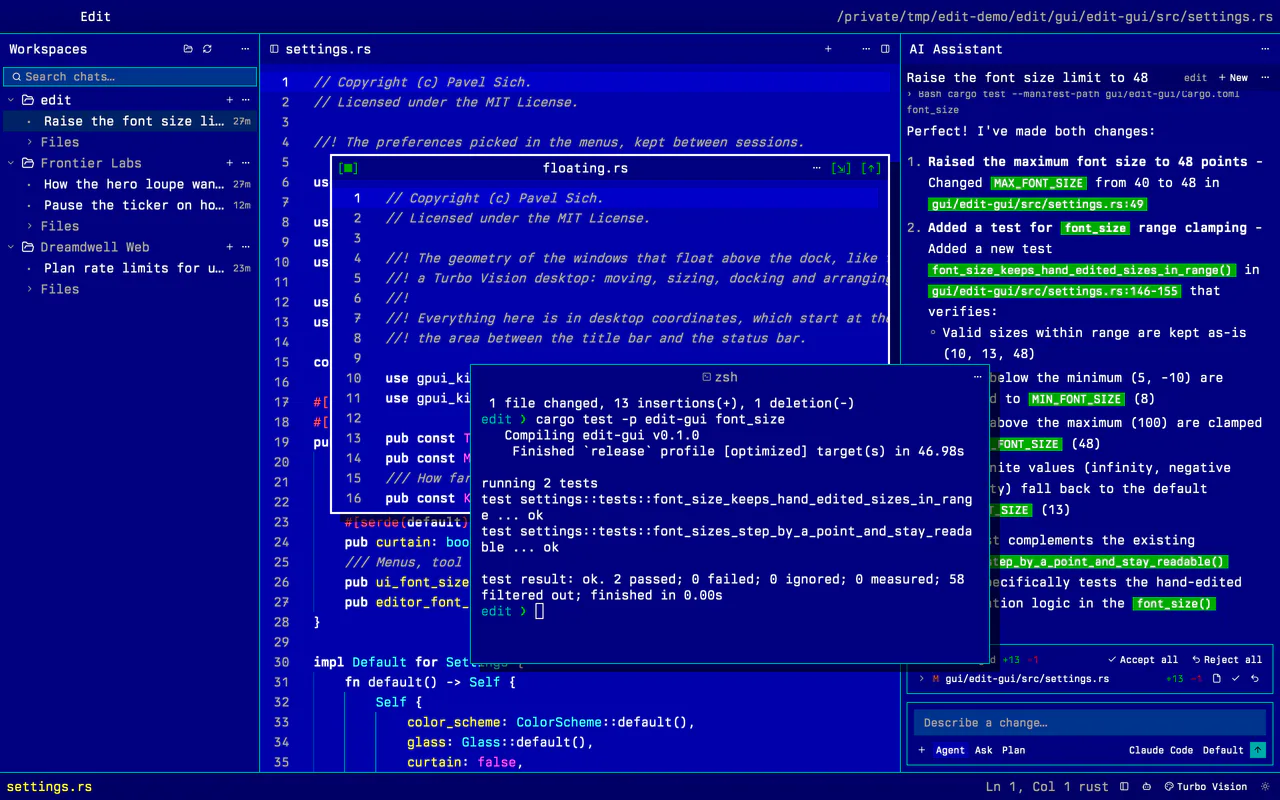
Any window floats above the docked layout in a Turbo Vision frame, and docks again with a drag.
35 tree-sitter grammars, from Rust and Go to Svelte and SQL, plus Razor, which Edit adds itself, so a .NET page is markup and C# rather than plain text.
§ 08 · Themes
Turbo Vision is the default: white and yellow on DOS blue, as in the Borland IDEs. Cursor Dark, Cursor Light and Violet Dark are there for the other days. Glass lets the desktop show through, with a clarity slider. The type, the caret and the selection stay at full strength.
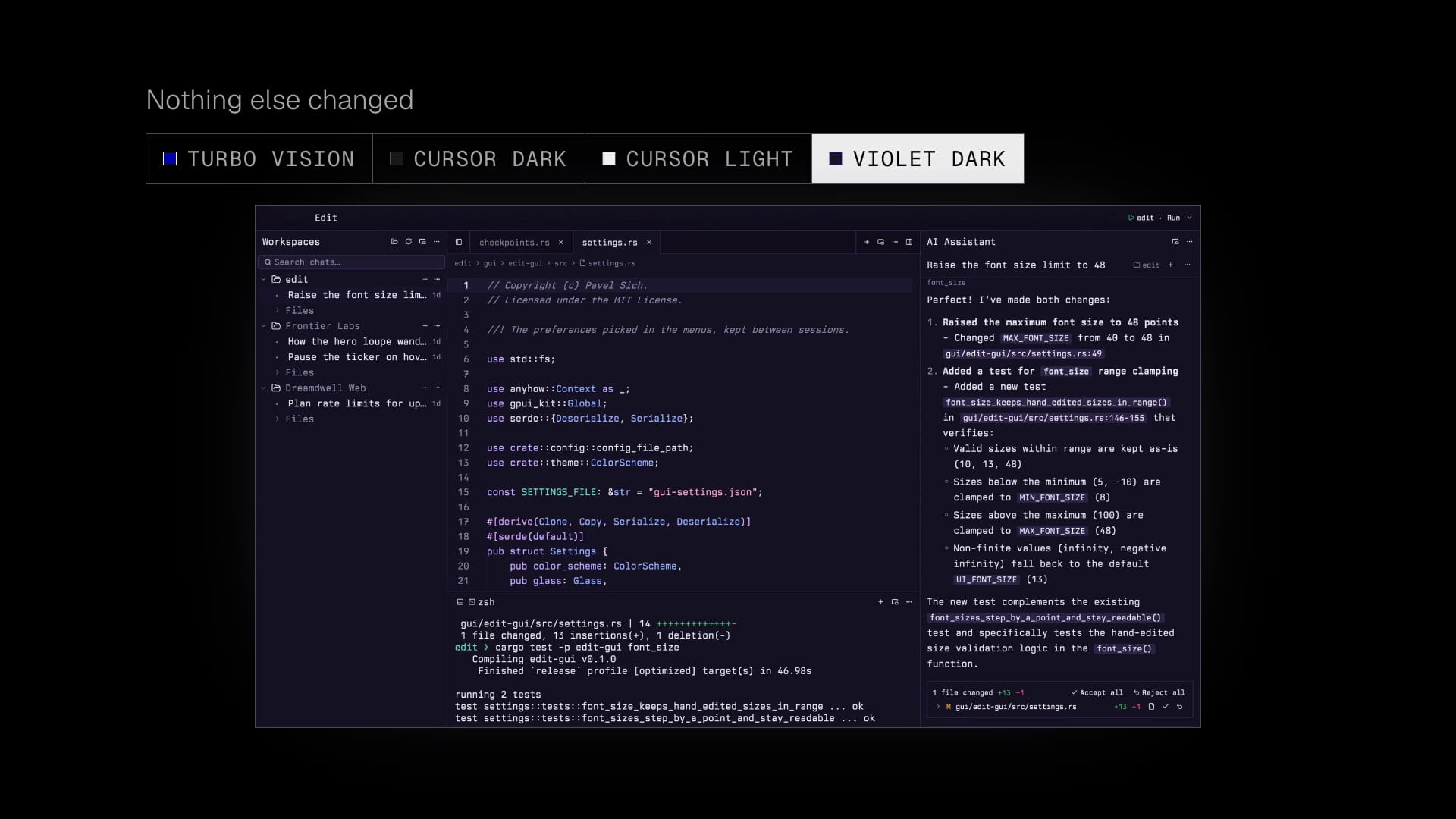
§ 09 · Status bar
The bar along the bottom names the open file, in yellow, and adds Modified when there are unsaved changes. A language server appears there only while it has news, such as rust-analyzer: starting. On the right are the line and column, the language, Files (F4), the AI Assistant (Ctrl+Alt+B), and the controls for the look.
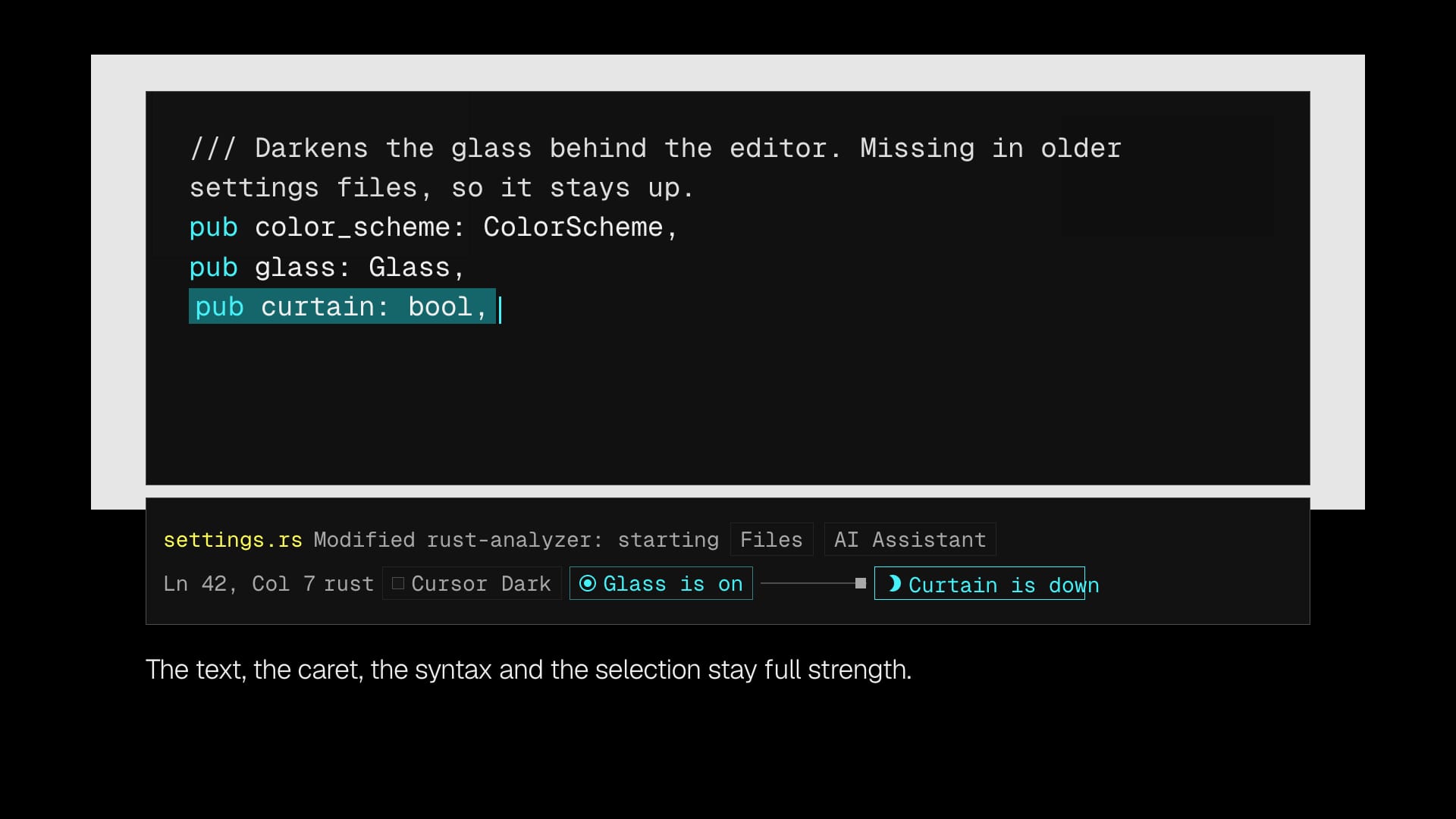
The palette button shows the name in use: Turbo Vision, Cursor Dark, Cursor Light or Violet Dark. Its menu checks the current one. The View menu lists the same four.
On macOS, Cursor Dark lets the desktop show through, blurred by the system. Glass is on unless you have turned it off. An eye on the bar does that, and a slider sets the clarity, each step halving how much the colors cover the desktop. The View menu repeats it as Glass, More Glass and Less Glass. On any other scheme the eye leaves the bar, and that menu item is disabled.
The last button is a moon when the curtain is down and a sun when it is up. Down darkens the glass behind the editor, so a bright desktop does not wash the window out. The text, the caret, the syntax colors and the selection stay full strength. The View menu checks Curtain while it is down. Turn glass off and there is nothing behind the editor for the curtain to hide.
§ 10 · Terminal version
The terminal version is the editor this all started from: a fork of Microsoft Edit with the same Turbo Vision windows. It runs over SSH, in a container or on a server, and the whole program is 443 KB.
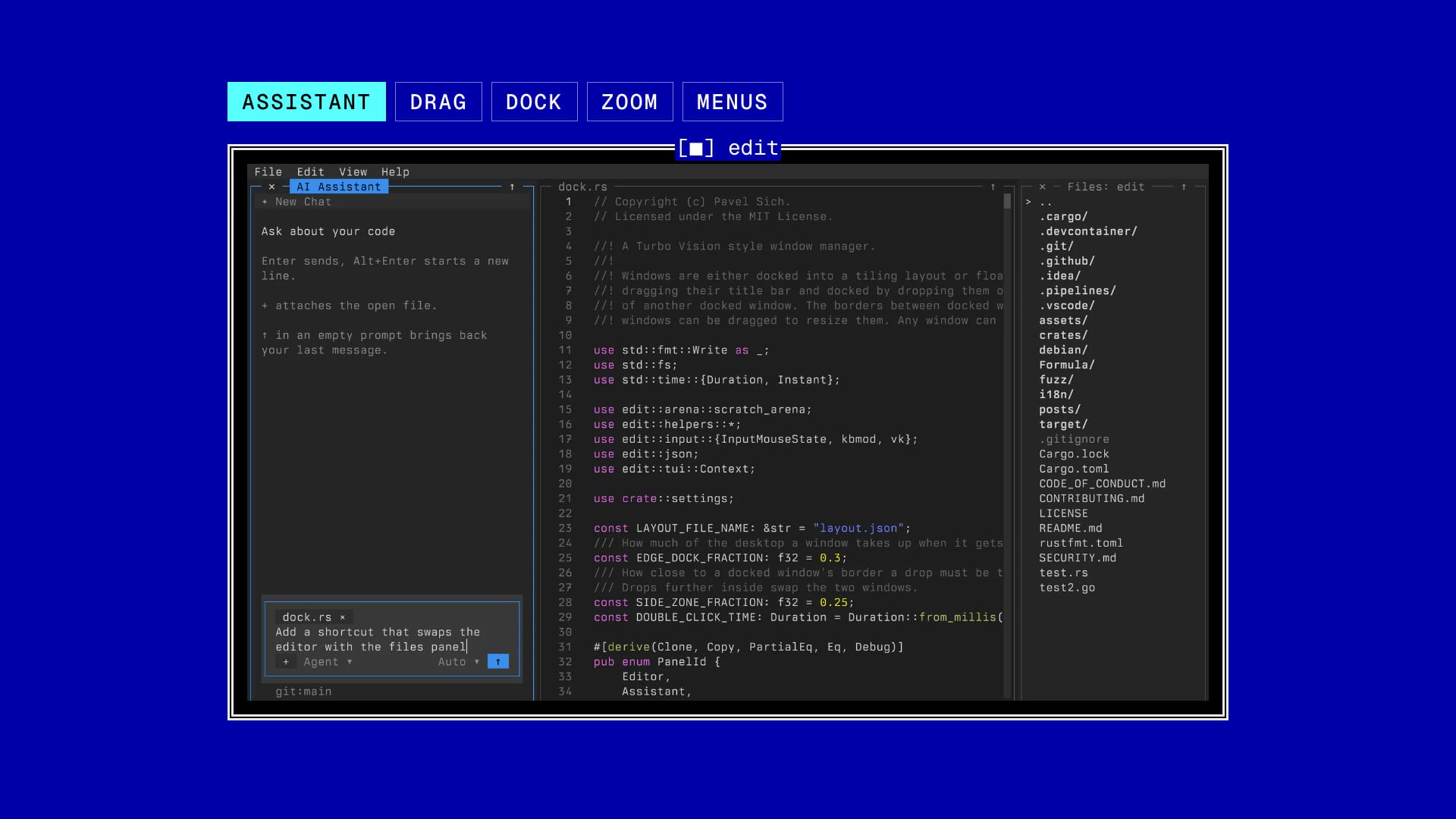
Fig. 07a · The AI Assistant window with the open file attached, next to the editor and the Files window.
Fig. 07b · Dragging a window by its title bar. The outline shows where it will land.
Fig. 07c · Dropped on the bottom edge, the Files window docks along it.
Fig. 07d · F5, or a double click on the title bar, zooms a window to fill the terminal.
Fig. 07e · Menus with their shortcuts, like the DOS editor had.
Workspaces
chats
general coding now
files
workspace.rs
chats
homepage
files
chats
draft now
files
Keys
Drop a window on a screen edge, beside another window, or on top of it to swap the two.
Edit's own highlighter, with definitions from Rust and C# to SQL, YAML and Markdown.
Completions from rust-analyzer, gopls, typescript-language-server, pyright and csharp-ls.
Claude Code, Cursor Agent and Codex run in the chat, with Agent, Ask and Plan. While one works, the header says so. A sign-in error runs that login on this terminal and then sends the prompt again.
Each directory in the open file's path opens that folder. The file name copies the full path.
File, then Open Folder, adds a project. Each folder keeps its chats above its files, and several chats can run at once. F4 opens the list. It is this app's own list, so it does not replace the GPU app's.
With Cursor Agent selected, the model button sits on the prompt. The menu lists that agent's models by name. Claude Code and Codex keep their own.
§ 11 · Download
Ready to run builds of both versions are on the way. The downloads will be here.
The agents are not bundled. Edit runs the ones you already have installed.
One small file. Copy it to a server or a container and run it.
§ 12 · Questions
The short answers.
Because the agents are already good. Edit does not replace them. It is the light, fast place they work: Rust, drawn on the GPU, comfortable in Rust, C# and .NET, in a window manager that has been good at juggling windows since the DOS days.
It runs Cursor Agent. It is not Cursor, and it is not Zed. It has no extensions, no debugger and no remote editing. It is a small, fast place to run the agents you have and review what they did.
The Changes tab lists every file that differs from the last commit, including new files. The list under a chat is only that turn. Shift Command G opens Changes, and the new tab menu has it too.
Claude Code, Cursor Agent and Codex, through their own command line tools, out of the box. Each chat picks its agent and model, skills you installed for that agent still apply, and several chats run at once.
Edit itself sends nothing. Your prompt and the files the agent reads go to whichever agent you chose, exactly as when you run that tool in a terminal.
macOS today, drawn with Metal. GPUI also draws on Linux and Windows, and those builds are the next step.